04-Backup SSD system
During the development process, users may need to back up the system to prevent subsequent development from affecting the current system environment.
1. Hardware connection
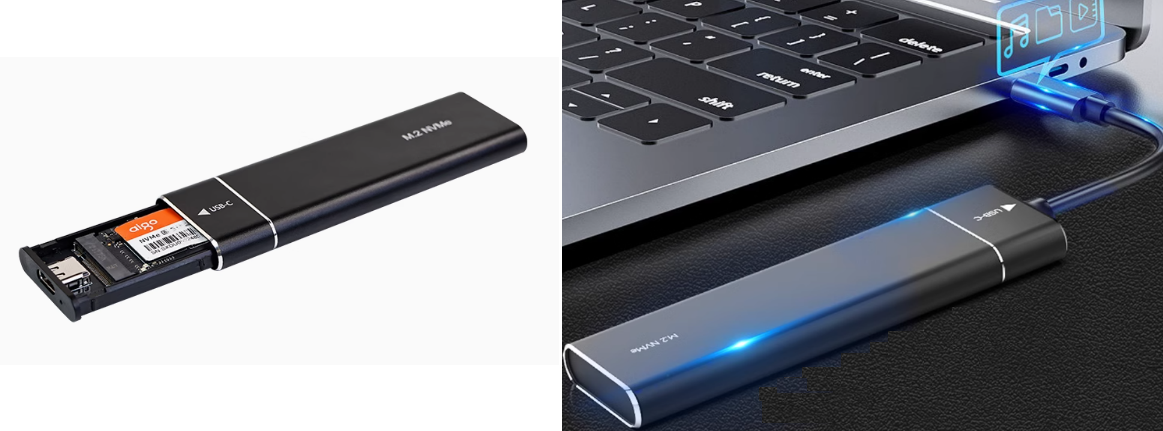
Users need to prepare the SSD box in advance, install the SSD into the SSD box and connect it to the computer or virtual machine: the computer and virtual machine systems need to be Ubuntu systems.
2. Compress the SSD
Since the SSD capacity of the Jetson Orin series motherboard is relatively large, we need to compress it to an appropriate space for system backup to save time for backup and burning the system.
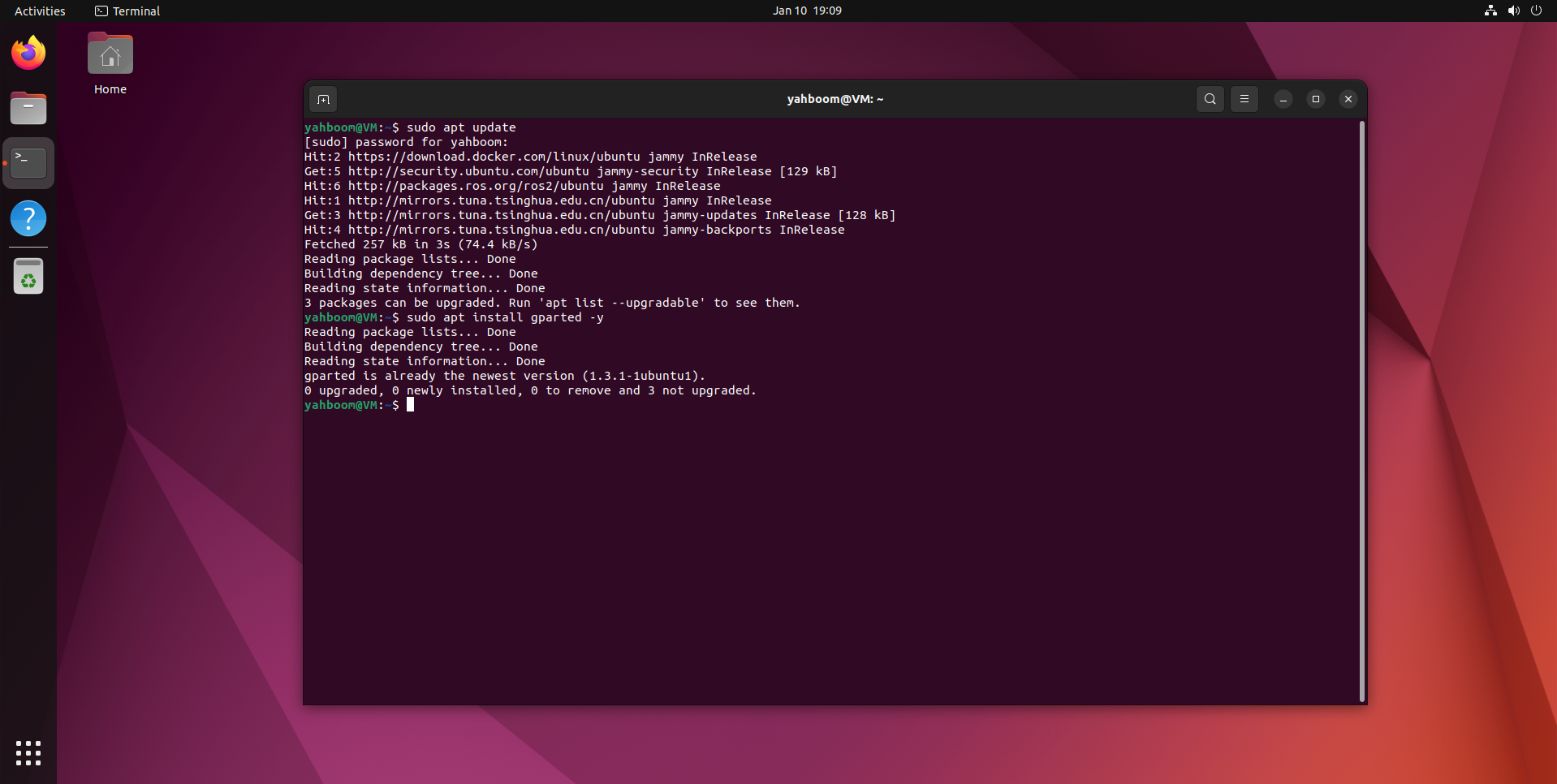
2.1. Install Gparted
2.2. Use GParted
Find theGPartedapplication icon in the system application menu bar to open it or enter the following command in the terminal to start it:
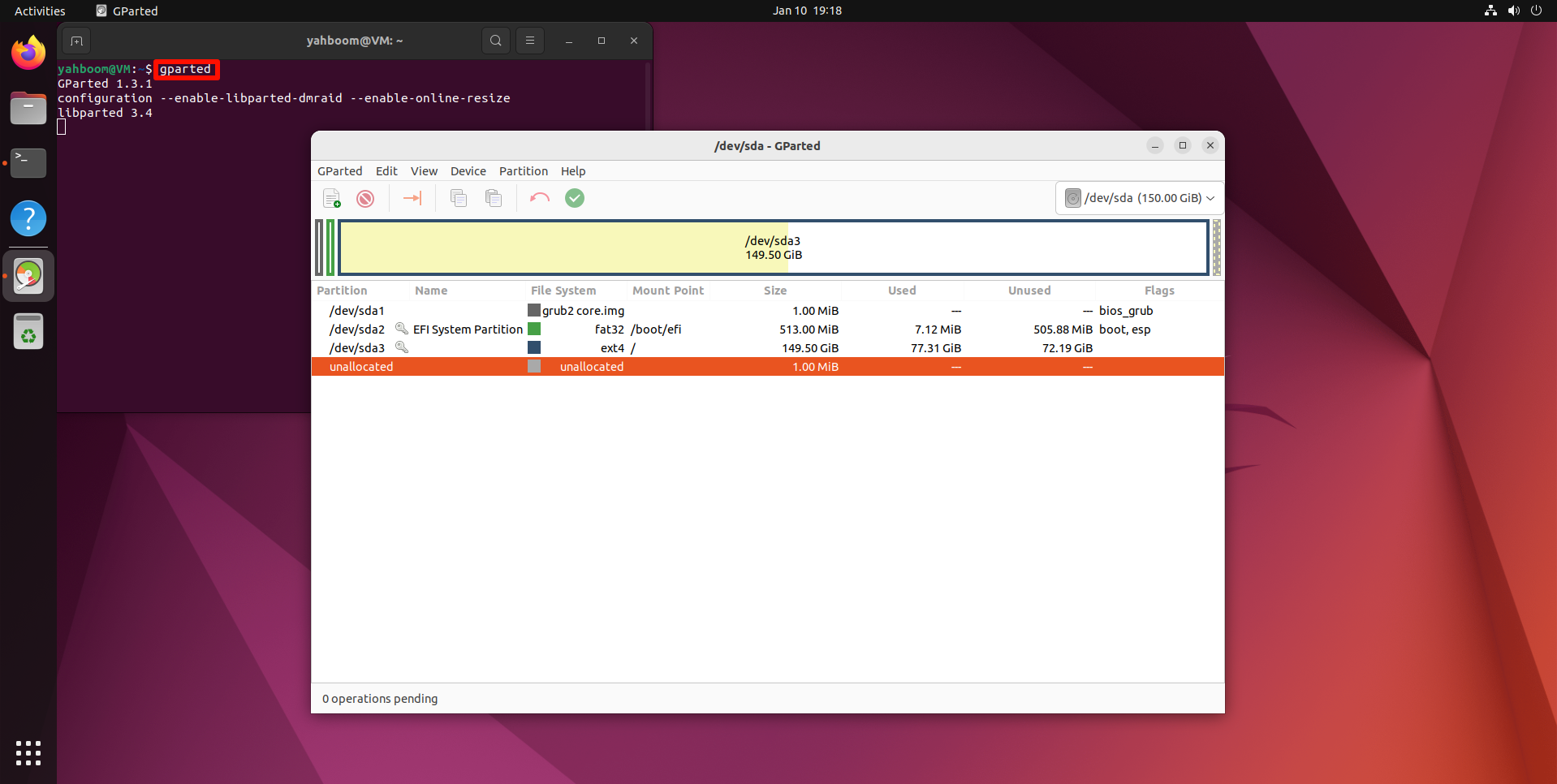
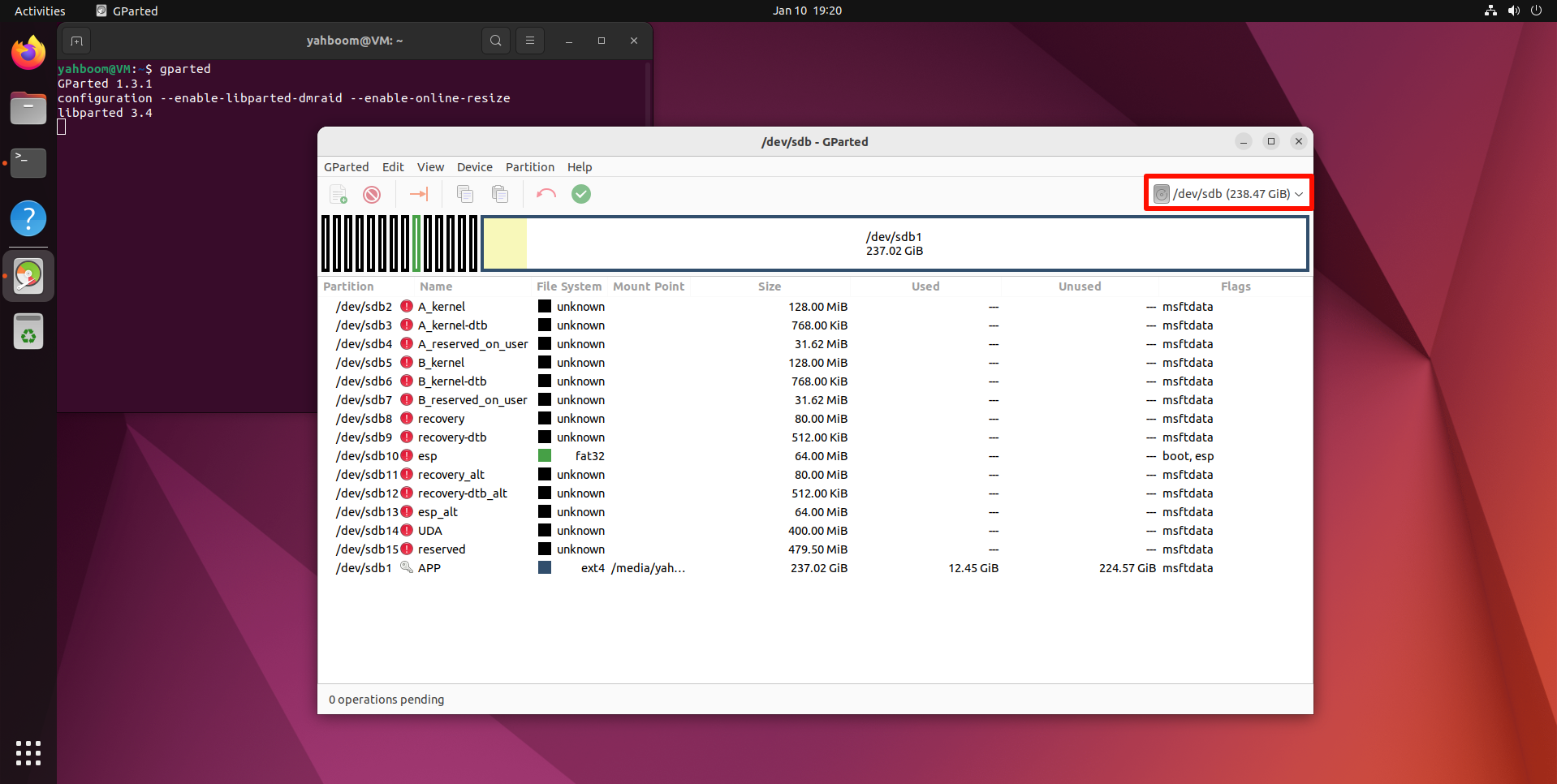
Select the newly added disk symbol: You can confirm again whether it is the SSD you mounted based on the disk capacity
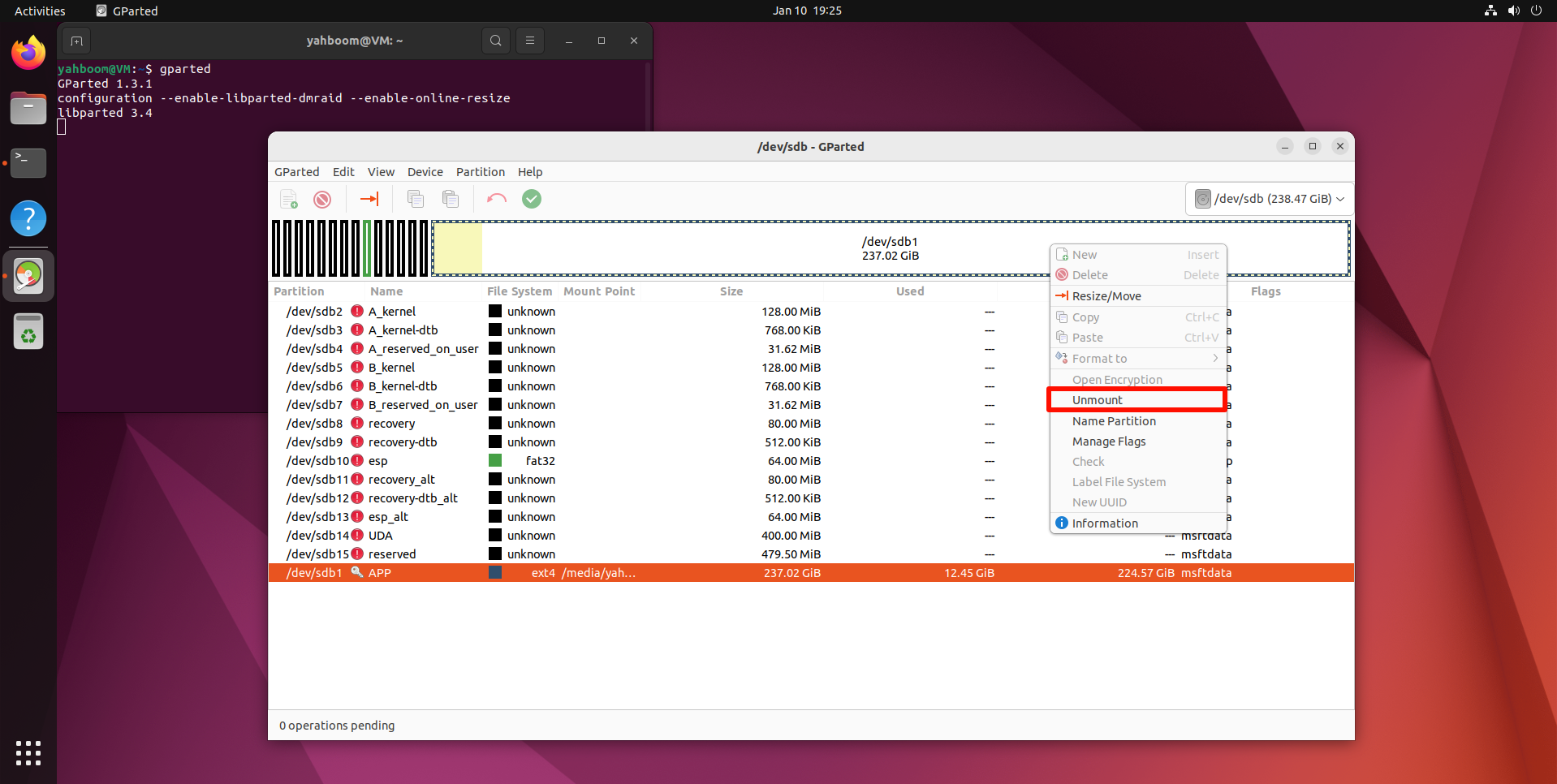
Before operating the disk, you need to unmount the disk: select theAPPpartition (largest partition) in the disk, and clickUnmountto unmount the partition
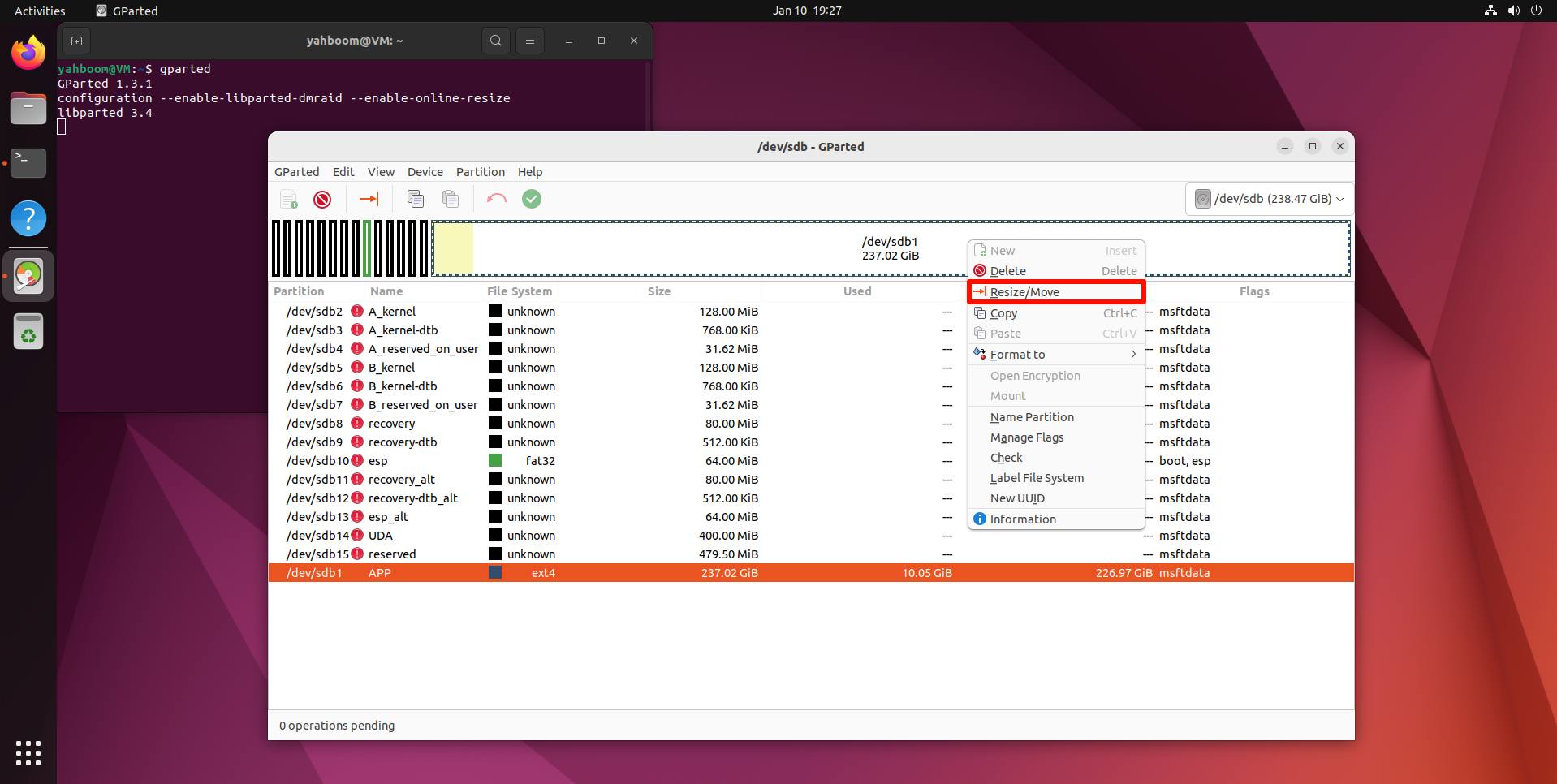
Right-click the uninstalled disk partition and resize the previously uninstalled partition space:
You can adjust the partition size using the slider: yellow is the space used by the partition, white is the unused space, it is recommended to leave about 5-10G of unused space in the partition to avoid the system from failing to start
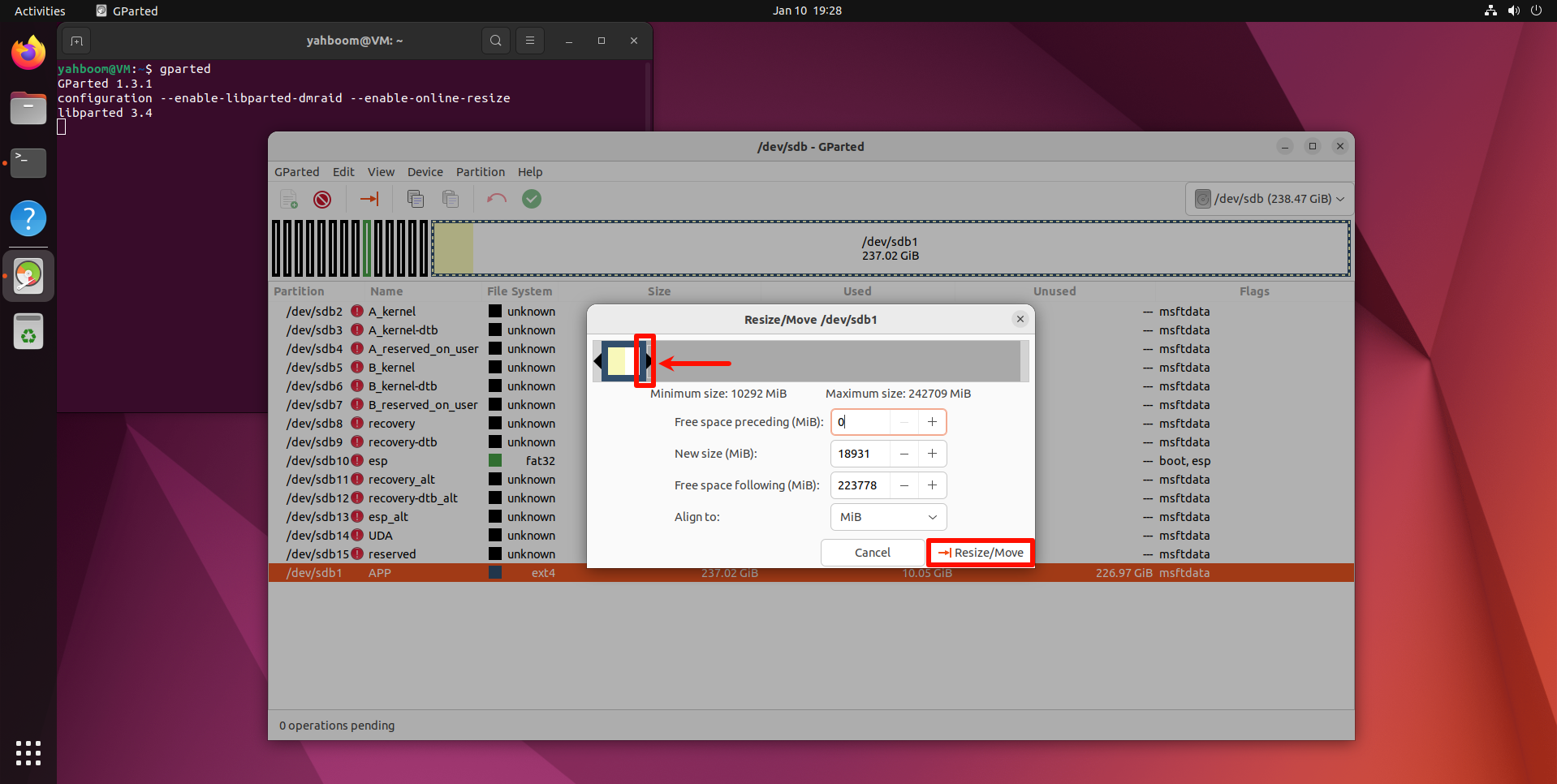
Confirm the disk operation:
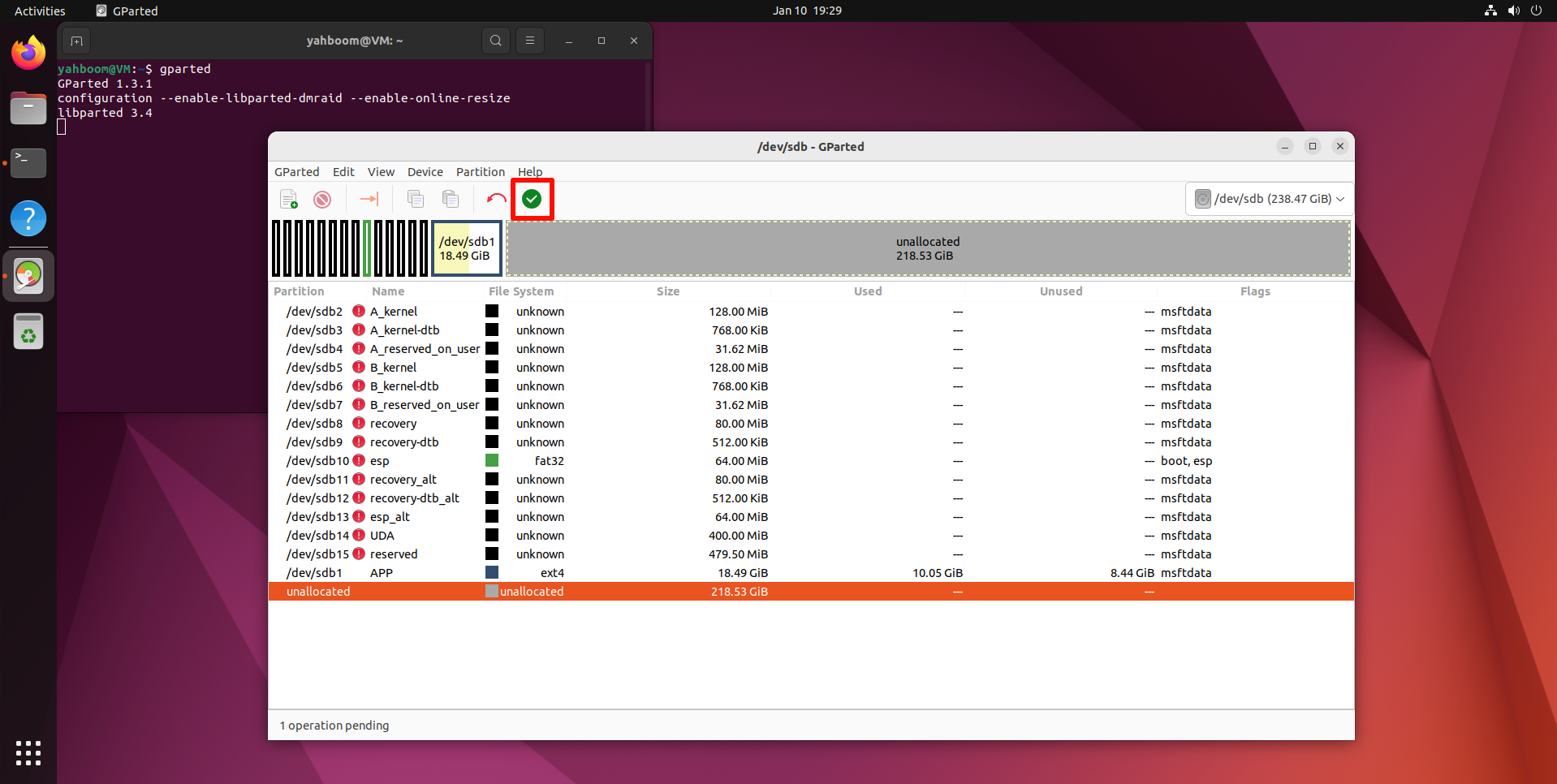
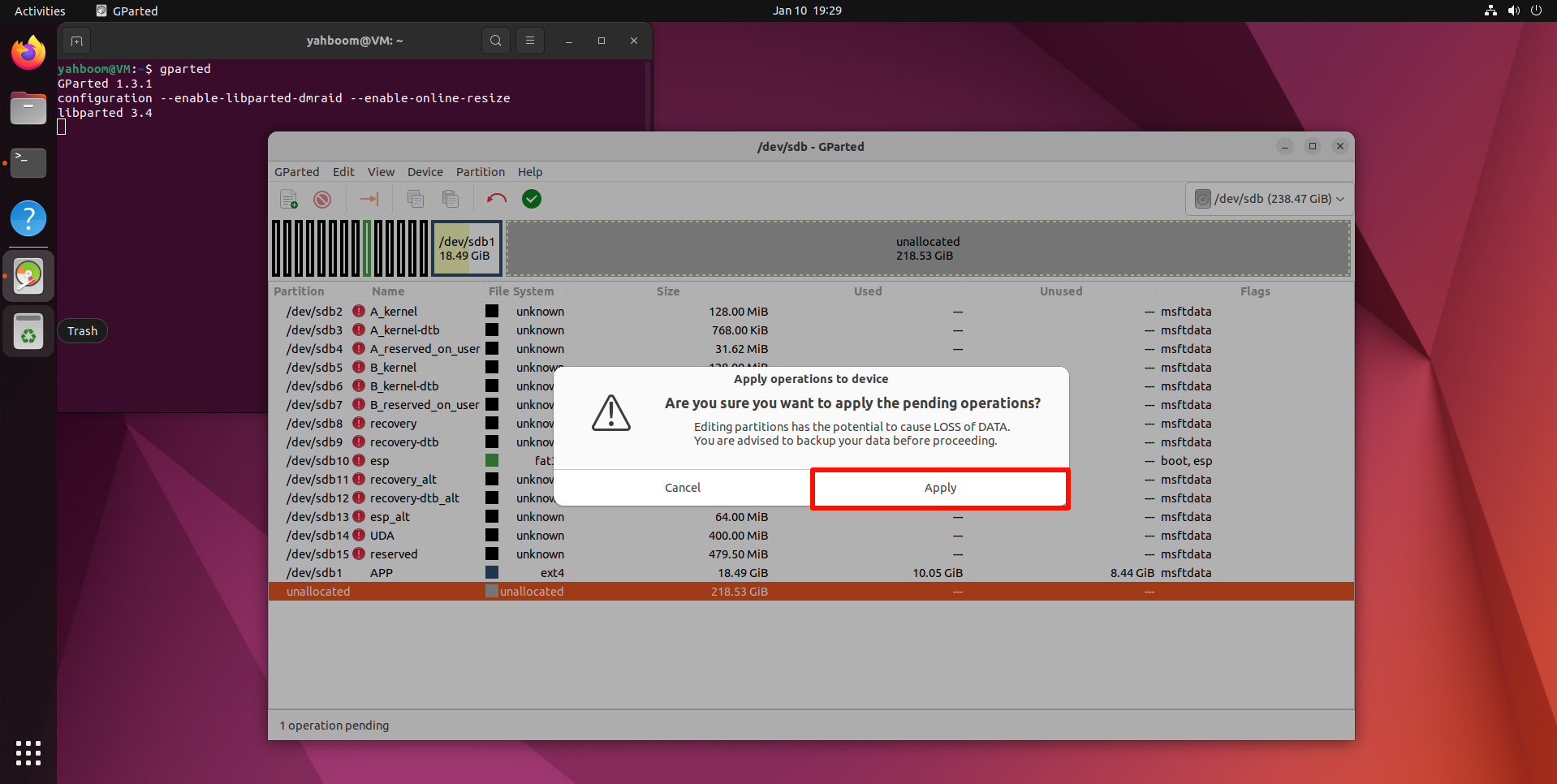
Wait for the operation to complete:
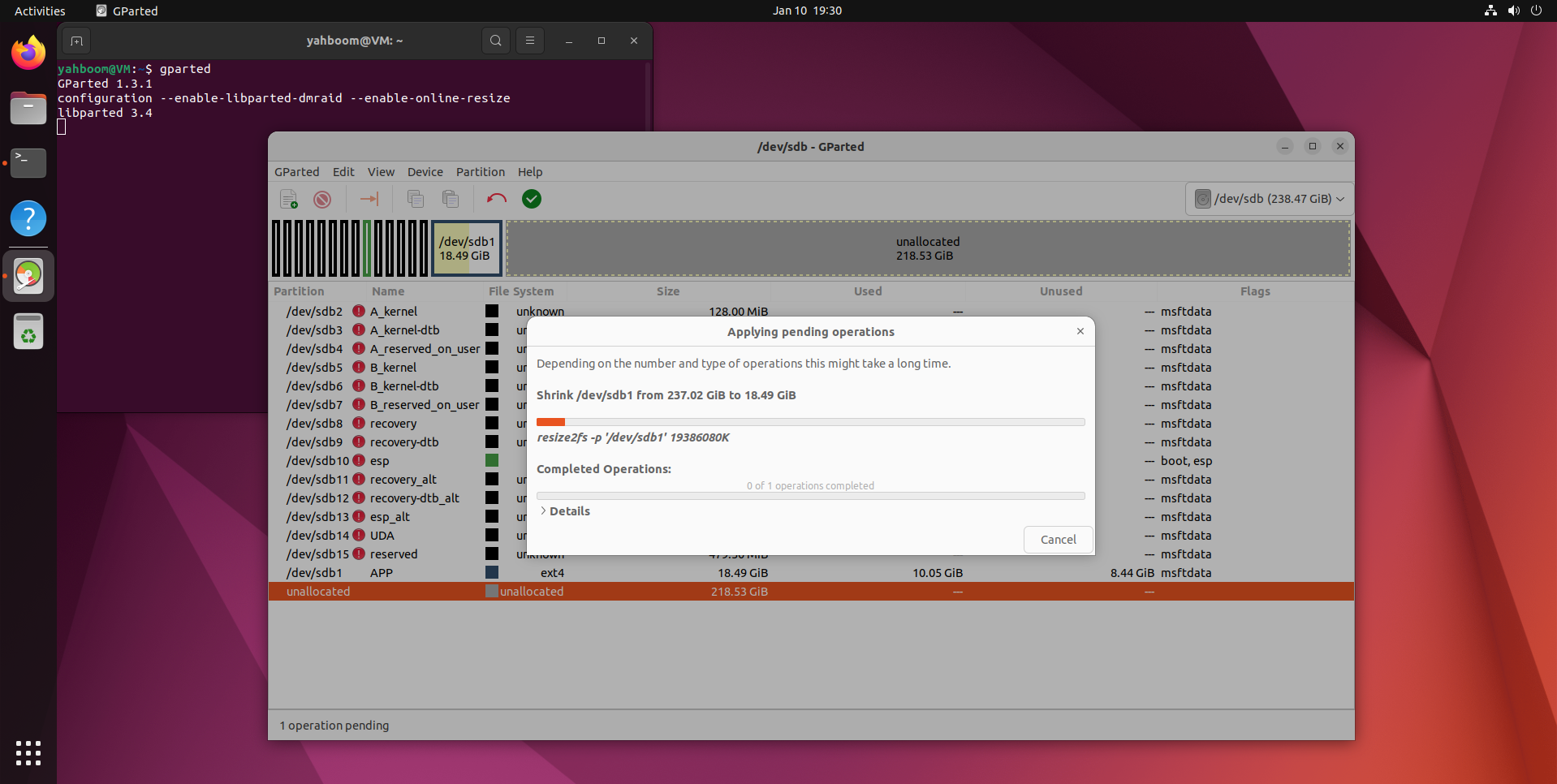
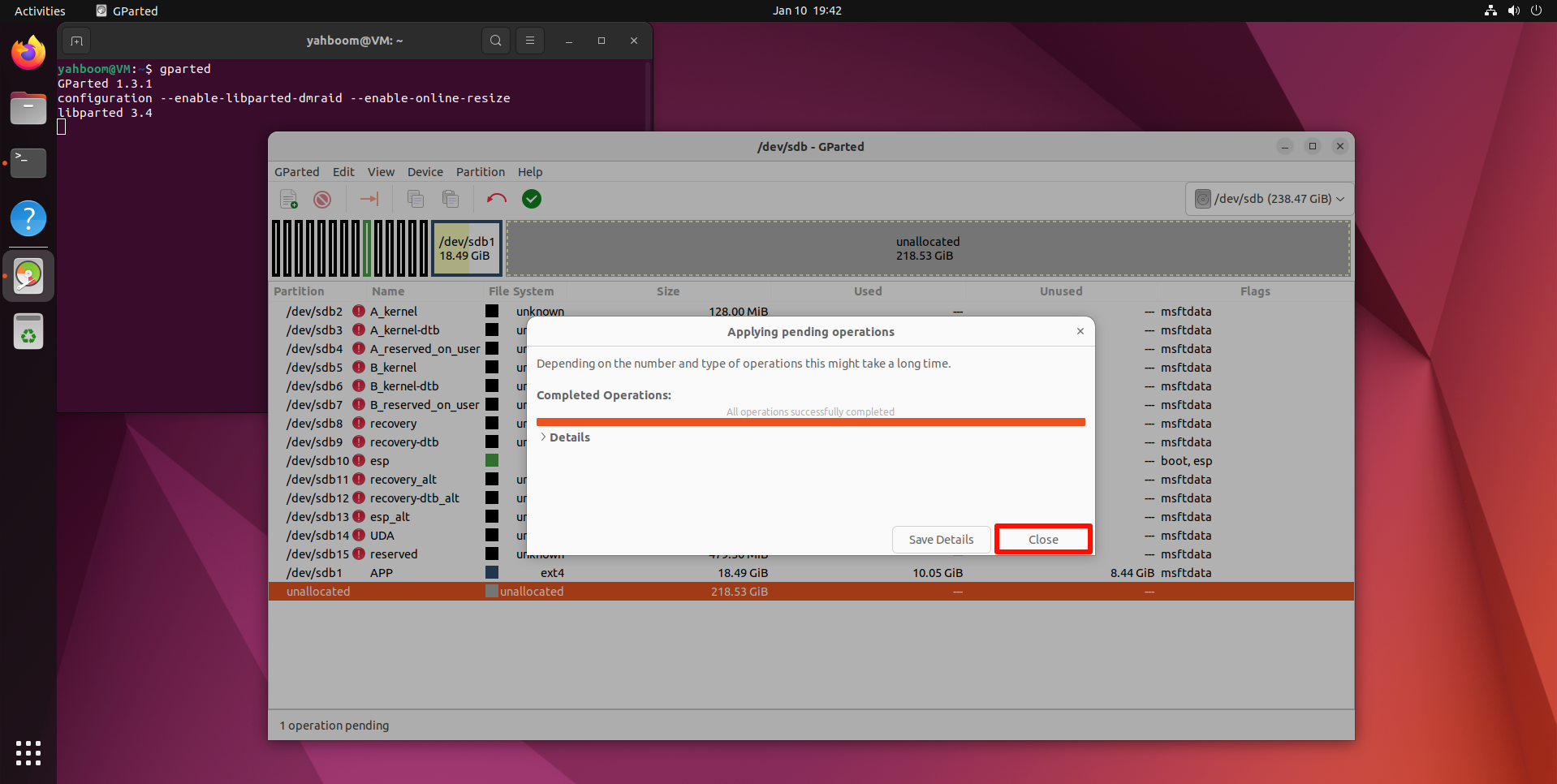
After completing the above operations, close GParted!
3. Back up the SSD
3.1. Check disk information
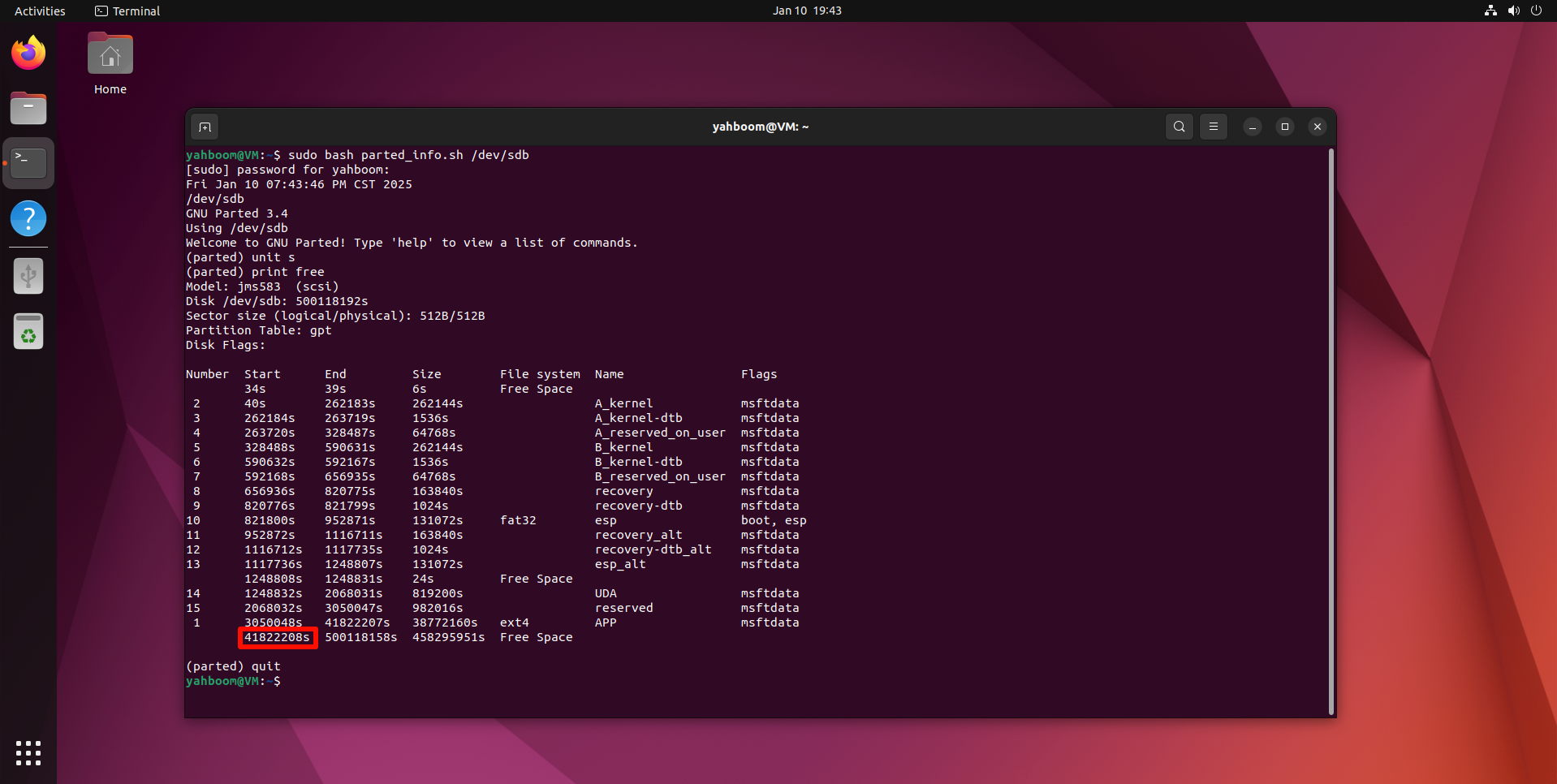
Open the terminal and use the script to view the current disk information: the drive letter needs to correspond to the drive letter of the SSD you backed up
parted_info.sh script content
Record the data in the figure: 41822208s
3.2. Start disk backup
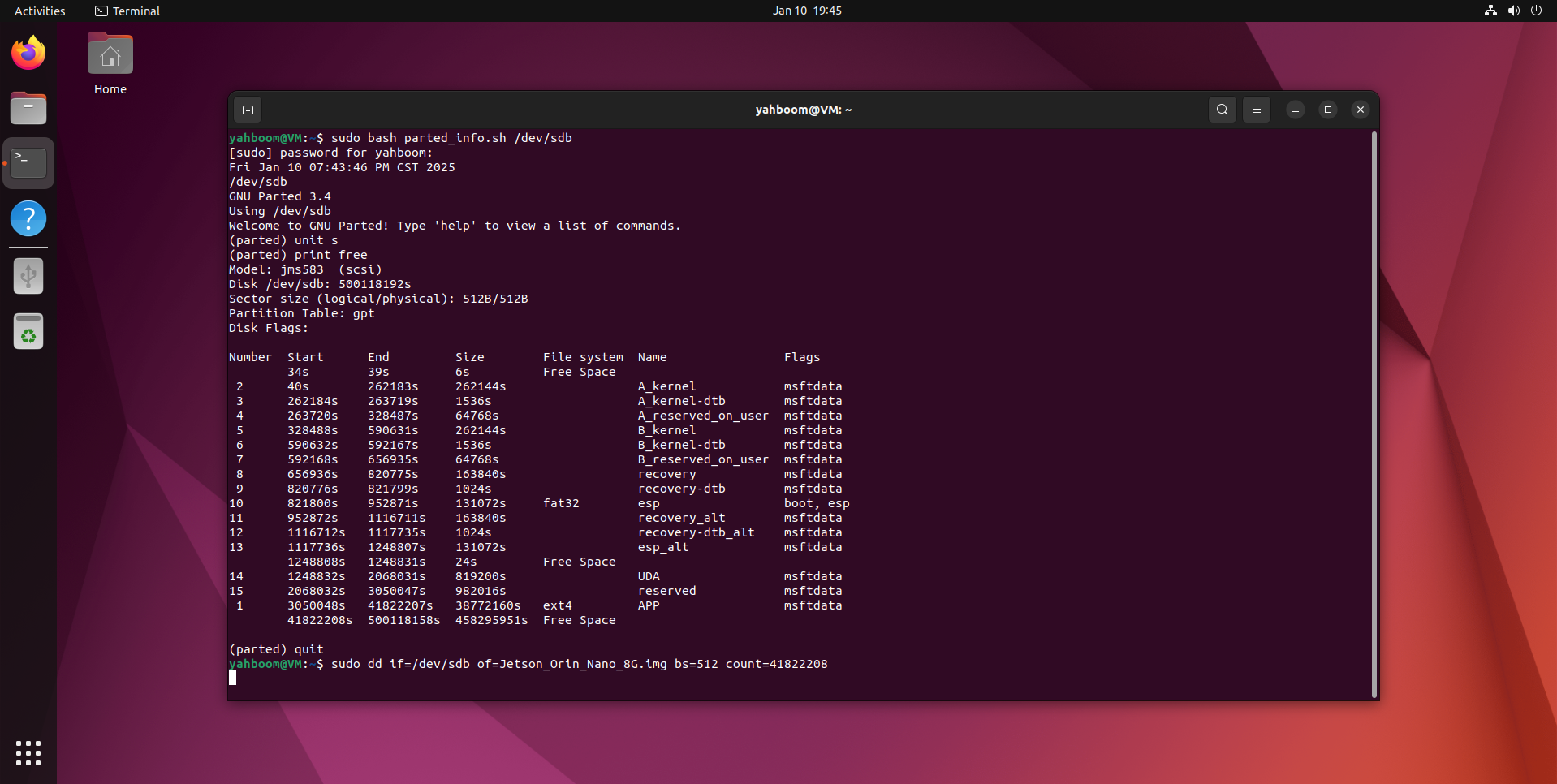
Use theddcommand to back up the SSD to theimgfile. Enter the following in the terminal:
/dev/sdb: SSD drive letter
Jetson_Orin_Nano_8G.img: Image name
bs=512: Set block size to 512 bytes
56393728: Data queried by the script
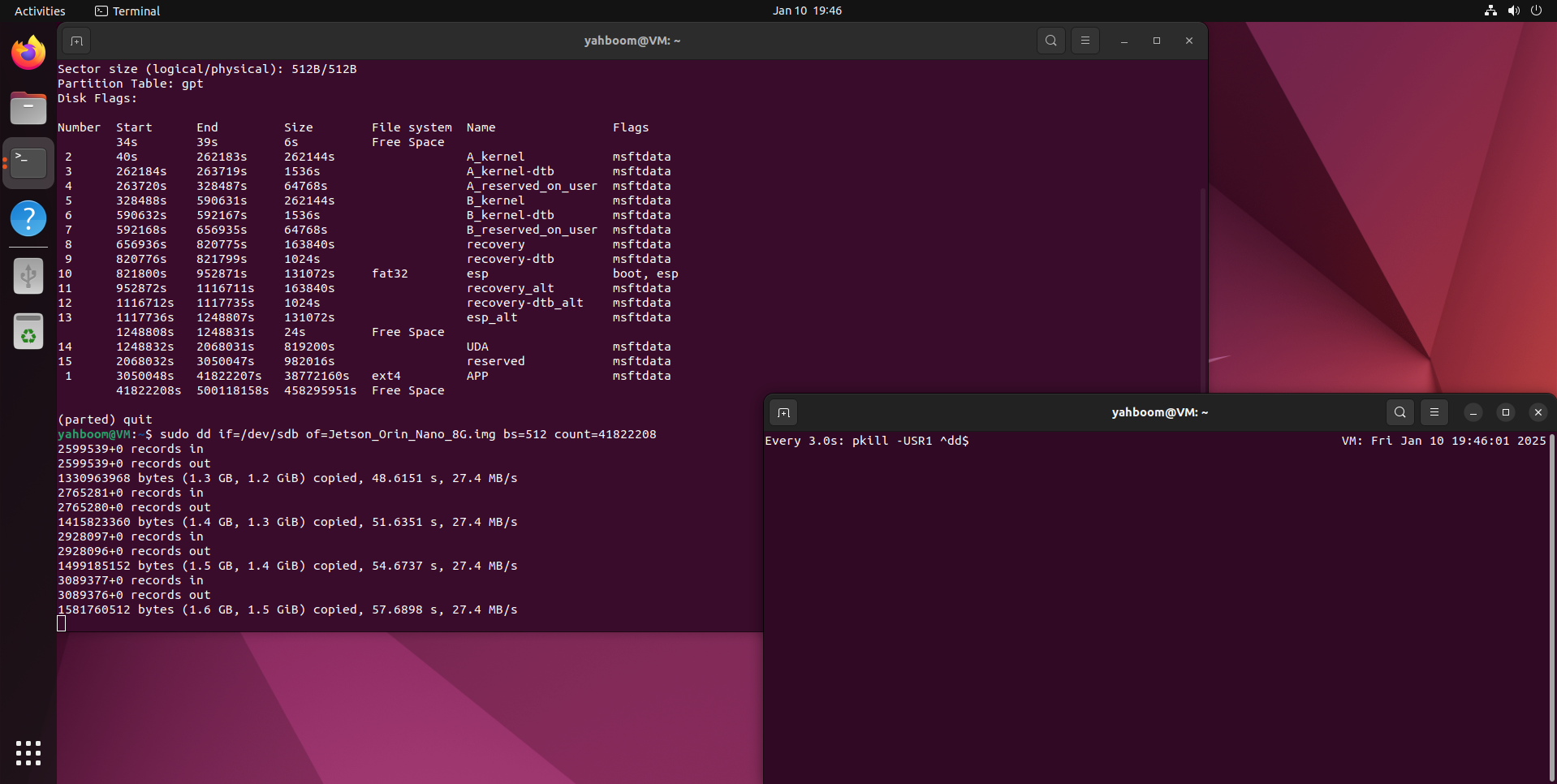
To view theddprocess information, open another terminal and enter the following command:
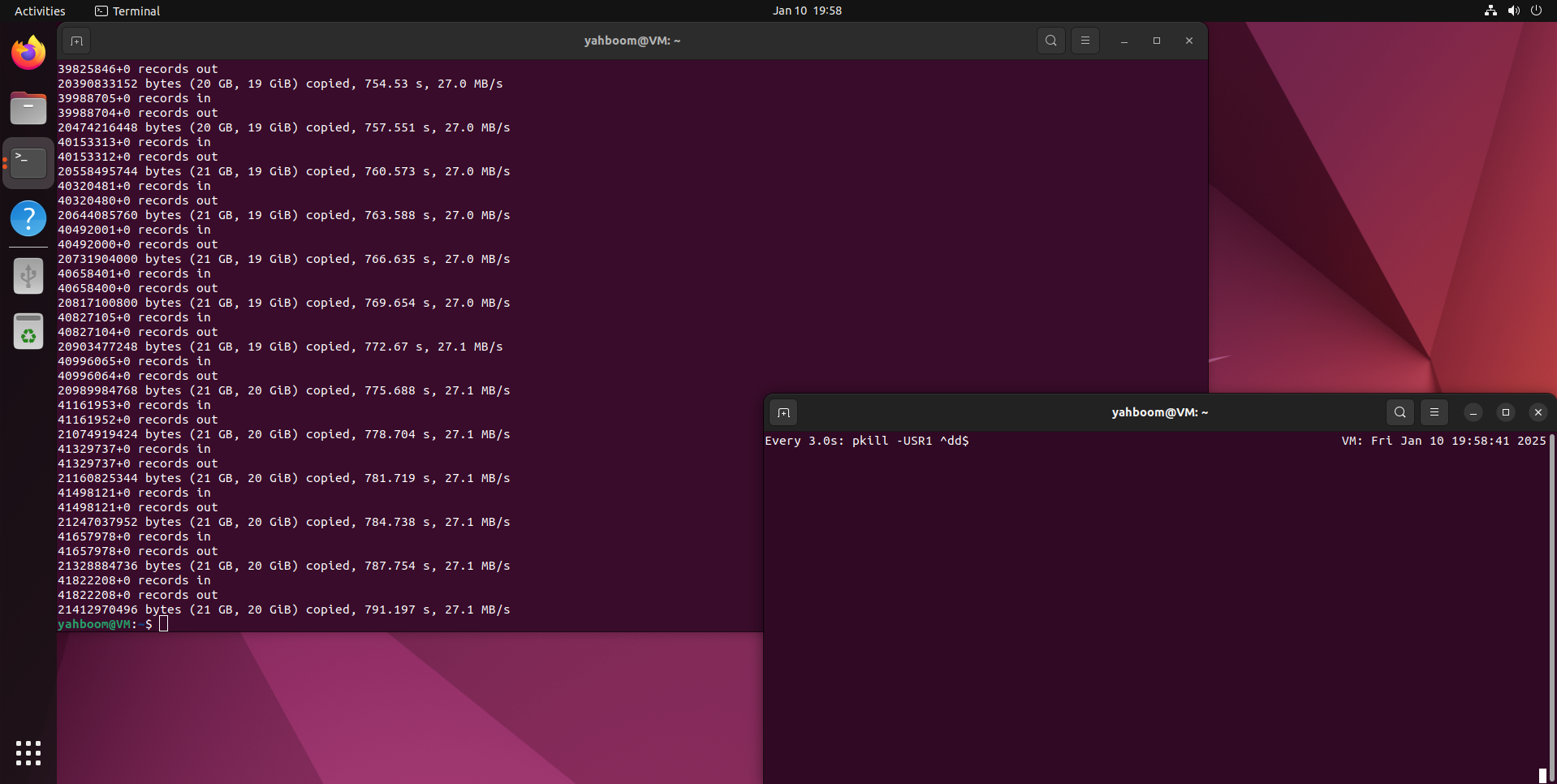
Wait for the backup to complete:
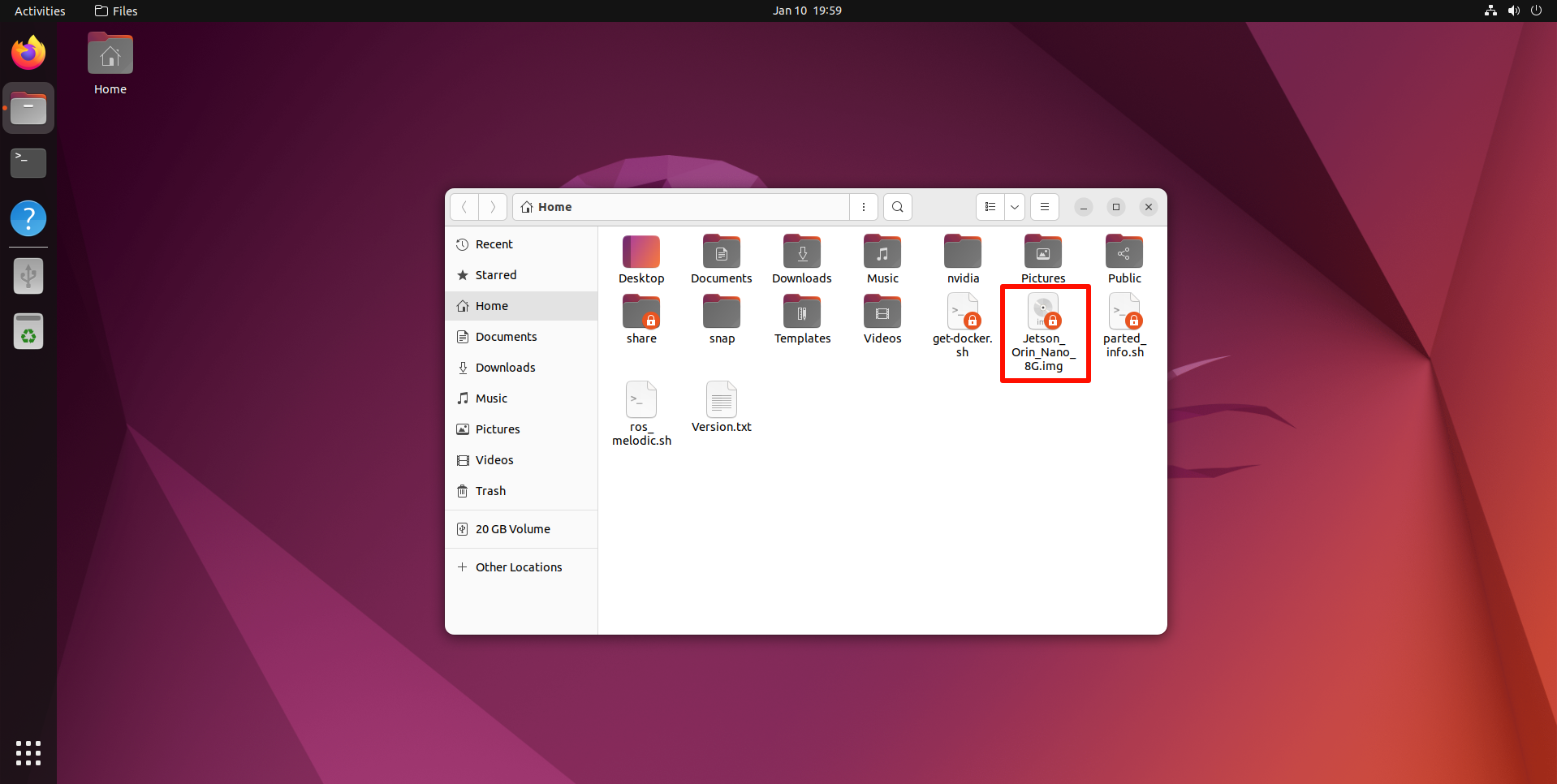
After the system backup is complete, move the backup file (Jetson_Orin_Nano_8G.img) to the Windows system for use.